How to Turn a Picture Into a GIF With AI
Learn how to turn a picture into a GIF with AI: pick the right photo, describe the motion, avoid common glitches and download a looping GIF in about a minute.
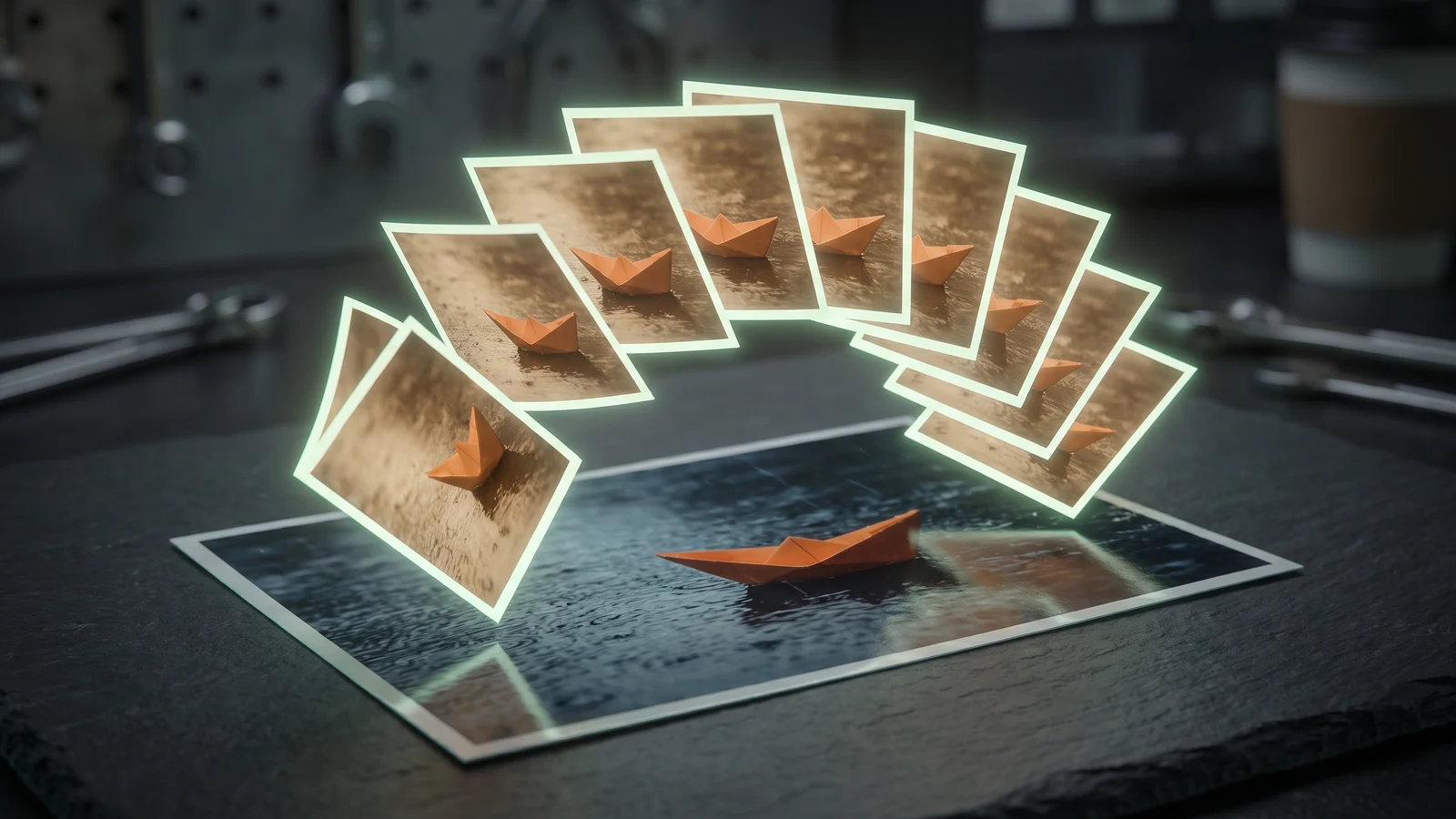
You can turn a picture into a GIF with AI in about a minute: upload one photo, tell the model what should move, and download a short looping GIF. No video, no timeline, no frame-by-frame editing. This guide walks through the whole process, explains what the AI is actually doing behind the button, and covers the handful of mistakes that make results look wrong.
Every example in this post started as a still photo and was animated with the AI GIF generator and its presets on Viberot.
Why a normal GIF converter can't do this#

A classic GIF maker needs frames you already have: a video clip, a burst of photos, or a sequence you drew. It just stitches them together. A single picture has exactly one frame, so a converter can only give you a GIF that doesn't move, or a slideshow that zooms in on it.
An AI image-to-GIF tool works the other way around. It looks at your photo and invents the frames that come next — the head turn, the wave, the laugh — while keeping the person and the background the same. That is the part that used to take an animator, and it is why the results can be surprisingly good or surprisingly strange depending on the photo you feed it.
How the AI makes the frames#
On Viberot, the model draws nine frames of the moment you describe and lays them out as a 3×3 grid in one image. Your browser then cuts the grid into nine squares and plays them in order, about 180 milliseconds per frame, which gives you a loop of roughly 1.6 seconds.
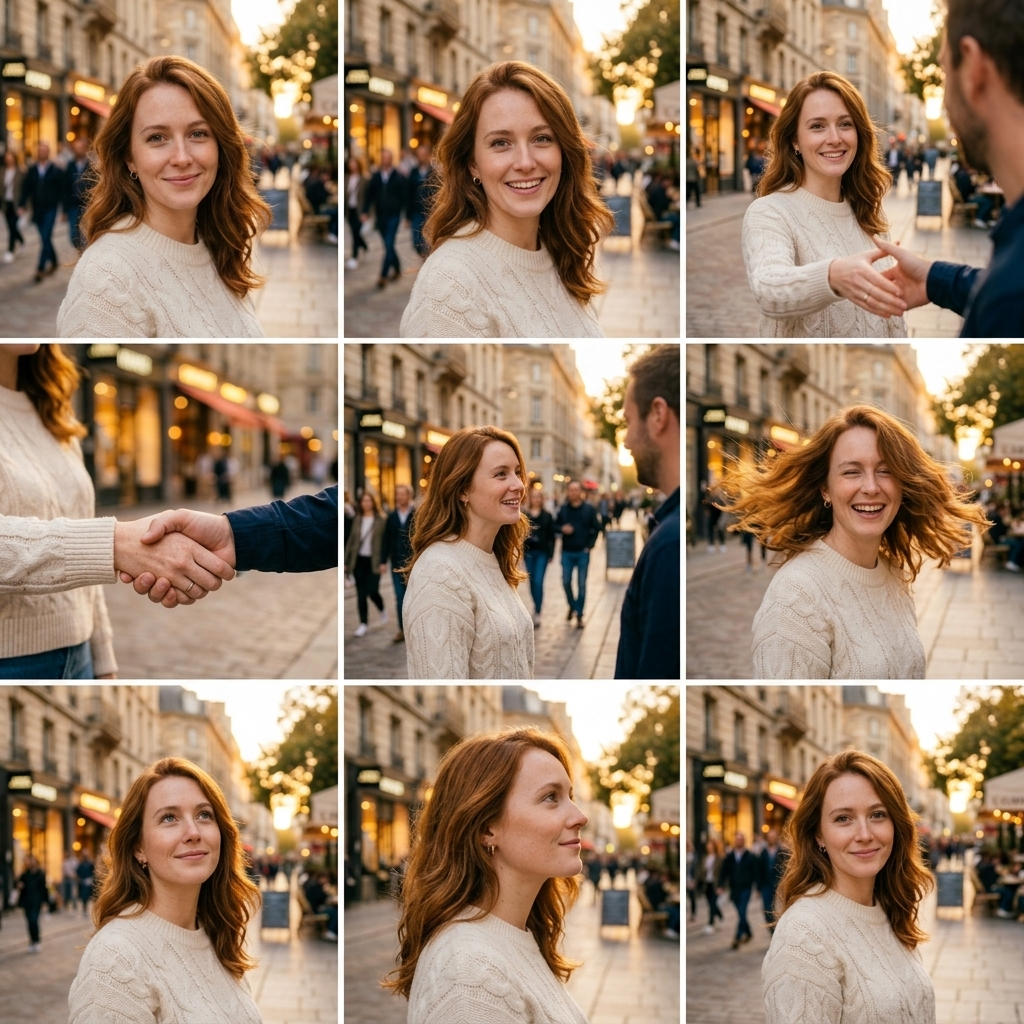
Two things follow from that design, and both matter when you pick a photo:
- Short, square loops. Nine frames is enough for a gesture or a reaction, not for a scene with a plot. Think "she laughs and covers her mouth", not "she walks across the room, opens the door and leaves".
- Consistency is the hard part. The model has to draw the same face nine times. Anything that makes the face hard to read in the original photo makes it drift between frames.
Step by step: turn a picture into a GIF#
- Open the generator. Go to the AI GIF generator and sign in. Every account gets free credits each month, so you can try it without paying.
- Upload your photo. You can add up to four photos. One is enough for most GIFs; add a second when the GIF involves two people.
- Describe the motion. The prompt box starts with a default — Make the scene in the image move and predict what happens next — which works fine for a first try. For more control, describe one action in plain words (examples below).
- Click Make GIF. Generation usually takes 30–90 seconds.
- Download. The result appears as a playing GIF. Click Download to save it as a
.giffile you can post anywhere that accepts GIFs.
Tip
If you don't want to write a prompt at all, start from a preset. The AI waving GIF, AI hugging GIF and AI kissing GIF effects have the motion built in — you only upload the photo.
Prompts that describe motion well#
The best prompts name one action, who does it, and how it ends. Short beats clever. Here are prompts you can copy and adapt:
She bursts out laughing and covers her mouth with one handHe looks up from his phone, notices the camera and gives a small waveThe dog tilts its head to the side, then wags its tailThey clink their coffee cups together and smile at each otherA few patterns that consistently go wrong:
- Several actions in one prompt. "He waves, then jumps, then spins around" asks for three moments in nine frames. You'll get a blur of half-finished poses. Pick one.
- Camera moves. "Zoom out to reveal the city" fights the grid format, because each frame has to keep the subject in the same square. Describe what the subject does, not what the camera does.
- Big changes of appearance. "She turns into a cat" is a transformation, not motion, and the in-between frames rarely look good.
Which photos animate best#
The photo matters more than the prompt. These are the usual difference between a clean loop and a glitchy one:
| Works well | Causes trouble |
|---|---|
| One or two people, faces clearly visible | Groups of five or more people |
| Head and shoulders to waist-up framing | Tiny figures in a wide landscape |
| Even daylight or soft indoor light | Harsh shadows across the face, heavy filters |
| Hands visible if the action uses them | Hands cropped out for a waving or clapping GIF |
| Sharp, in-focus original | Blurry screenshots, heavily compressed images |


If a result looks off, the cheapest fix is usually a better photo, not a longer prompt. A tighter crop around the person often helps more than anything else.
Ready-made GIF effects#
If you want a specific reaction, the presets save you the trial and error. Each one is tuned for a single motion:
- Waving — a friendly hello or goodbye from one portrait.
- Dancing — a short, light dance on the spot.
- Holding laugh — the "trying not to laugh" reaction, great for replies.
- Hugging and kissing — take two photos and bring the two people together in one scene.
When a GIF gets rejected#
Two kinds of requests are refused, and it's better to know before you spend a try:
- Explicit or violent content. The models' safety filters block it, whatever the prompt says.
- Minors or public figures in intimate effects. Kissing and similar effects check the photos first and refuse pictures of children or recognizable public figures.
Note
If a generation fails or is rejected by the model, the credits for that try are refunded to your balance automatically.
How much it costs#
A GIF costs 10 credits. Every account gets 20 free credits every month, which is two GIFs, with no card required. On the free plan GIFs carry a small watermark and may be shown in the public gallery; subscribers can switch the watermark off and keep creations private. Current plans and credit packs are on the pricing page.
Frequently asked questions#
Can I turn a picture into a GIF for free?#
Yes. The 20 free monthly credits cover two GIFs. You need an account, but not a card.
How long is the GIF?#
Nine frames at about 180 ms each — roughly 1.6 seconds, looping. It's made for reactions and gestures rather than long scenes.
Can I animate a drawing, a pet or an old photo?#
Usually, yes. Clear subjects animate best: a pet looking at the camera, a cartoon character with a readable face, a scanned portrait. Very faded or damaged photos are harder, because the model has less detail to keep consistent.
Why does the face change slightly between frames?#
The model draws the face nine times, and small drift is the main weakness of this approach. A sharper, closer photo with even light reduces it a lot.
Can I make a GIF of two people from two separate photos?#
Yes — upload both photos. The hugging and kissing effects are built for exactly that and place both people in the scene of the first photo.
One photo in. GIF out.
Every account gets free credits each month, and failed generations are refunded automatically.